
It is one of the most common setups for modern developers: you have a single workstation (often a company-issued laptop) but need to manage two or more GitHub profiles. You have your corporate profile for office work, and your personal profile for side-projects, client work, or open-source contributions.
If you don't configure this correctly, you will hit two main issues:
- Permission Errors: GitHub will reject your pushes because it defaults to using the wrong SSH key or credentials.
- Commit Contamination: You accidentally commit work code with your personal email, or push code to your personal repos using your corporate organization email, raising security flags.
Most guides online show you how to set up basic SSH aliases, which forces you to manually type config variables or edit clone URLs (like `git@github.com-personal`). This is tedious and easy to forget.
In this guide, we'll walk through the **modern, bulletproof way** to configure multiple Git profiles on one machine. By using Git's conditional includes (includeIf), your computer will automatically load the correct email, name, and SSH keys depending on which folder you are working in.
Step 1: Generate Separate SSH Keys
You cannot use the same SSH key across different GitHub accounts. You must generate distinct keys for your work and personal profiles.
Open your terminal (PowerShell, Command Prompt, or Linux/macOS shell) and run the following commands. Ensure you specify a distinct filename for each key:
Generate Work Key:
ssh-keygen -t ed25519 -C "work@company.com" -f ~/.ssh/id_ed25519_work
Generate Personal Key:
ssh-keygen -t ed25519 -C "personal@email.com" -f ~/.ssh/id_ed25519_personal
When prompted for a passphrase, you can either enter one for extra security or hit Enter to skip it.
Step 2: Add Public Keys to Respective GitHub Accounts
Now, add the public keys to your accounts on GitHub:
- Copy your work public key:
- Log into your **Work GitHub account**, go to **Settings -> SSH and GPG keys -> New SSH Key**, and paste the contents.
- Do the same for your personal key:
- Log into your **Personal GitHub account** and paste it there.
cat ~/.ssh/id_ed25519_work.pub
cat ~/.ssh/id_ed25519_personal.pub
Step 3: Configure Your SSH Config File
Next, we need to instruct SSH on which key file to use when connecting to GitHub. We do this by creating or editing the SSH config file.
Open or create the config file: ~/.ssh/config and paste the following configuration blocks:
# Default / Work Account
Host github.com
    HostName github.com
    User git
    IdentityFile ~/.ssh/id_ed25519_work
    IdentitiesOnly yes

# Personal Account
Host github.com-personal
    HostName github.com
    User git
    IdentityFile ~/.ssh/id_ed25519_personal
    IdentitiesOnly yes
This allows you to clone personal repositories using the host alias: git clone git@github.com-personal:username/repo-name.git, which forces SSH to load the personal key. But what if you forget to use this alias? Let's automate it using directories.
Step 4: Automate Everything with Git "includeIf"
To make the system bulletproof, we will organize our directories so that Git automatically swaps configurations depending on the workspace path.
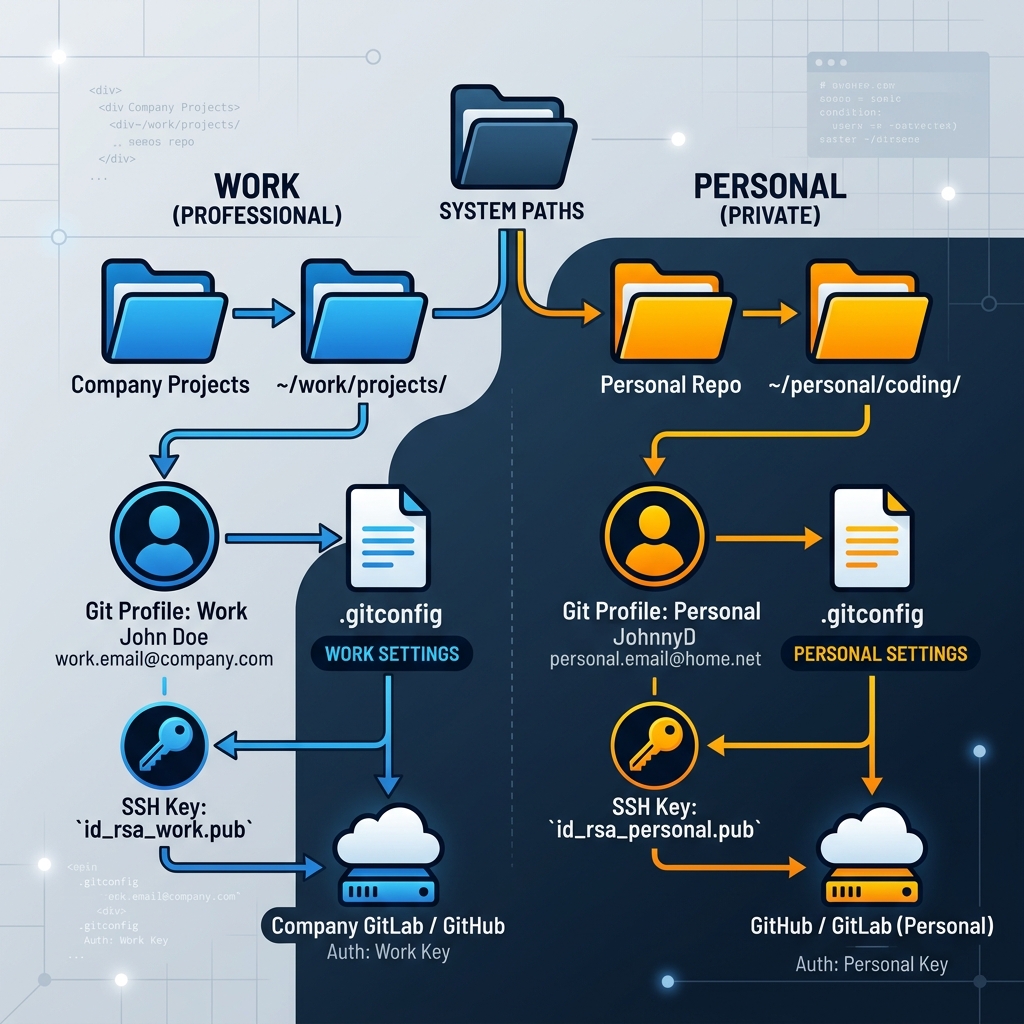
- Create separate folders for your work and personal projects. For example:
- Work:
~/projects/work/ - Personal:
~/projects/personal/
- Work:
- Open your global Git configuration file (
~/.gitconfig) and rewrite it like this:
[user]
    name = Your Default Name
    email = default@email.com

# If working inside the work directory, load work configs
[includeIf "gitdir:~/projects/work/"]
    path = ~/.gitconfig-work

# If working inside the personal directory, load personal configs
[includeIf "gitdir:~/projects/personal/"]
    path = ~/.gitconfig-personal
- Now, create the
~/.gitconfig-workfile and define your corporate identity and key instruction:
[user]
    email = work@company.com
[core]
    sshCommand = "ssh -i ~/.ssh/id_ed25519_work"
- Finally, create the
~/.gitconfig-personalfile for your personal identity:
[user]
    email = personal@email.com
[core]
    sshCommand = "ssh -i ~/.ssh/id_ed25519_personal"
Why This Setup is a Lifesaver
By overriding the core.sshCommand inside the respective folder configurations, you gain two massive advantages:
- No More Custom Aliases: You don't have to change your clone commands anymore. You can just run the standard
git clone git@github.com:username/repo.gitinside your~/projects/personal/directory, and Git will automatically assign the personal key and personal email. - Zero Context Leaks: Any repository inside your work folder will automatically use your work email, and any repository in your personal folder will use your personal email. Your professional and private profiles remain completely isolated.
To verify the setup is working, navigate to any repository inside ~/projects/personal/ and type: git config user.email. You should instantly see your personal email address displayed!